웹서버의 트래픽을 보기 위해 PG 스택으로 모니터링 서버를 구축해보기로 함
저번에 https 적용까지 한 워드프레스 LEMP 서버가 대상으로 같은 가상머신 네트워크 상 1대에 모니터링 VM 구축이 목표
2025.11.08 - [리눅스/실습] - 웹서버에 TLS 적용하기
웹서버에 TLS 적용하기
워드프레스가 제대로 붙었으니 이제 http를 https로 만들어 볼 생각이다. 간단하게 테스트 환경에서 적용할 수 있는 openssl이랑 실제 인증서를 받아서 적용 가능한 let's encrypt가 있는데,let's encrypt를
dbswjdahr.tistory.com
elk는 여기서 내 노트북이 감당 못하기 때문에 가벼운 prometheus랑 grafana로 깔기로 한다.
일단 https://prometheus.io/download/ 여기에서 프로메테우스를 Alma에 다운받아야 하고,
https://grafana.com/grafana/download?pg=oss-graf&plcmt=hero-btn-1 여기에서 그라파나를 마찬가지로 받는다. OSS로
[root@monitoring ~]# https://github.com/prometheus/prometheus/releases/download/v3.7.3/prometheus-3.7.3.linux-amd64.tar.gz
[root@monitoring ~]# install -y https://dl.grafana.com/grafana/release/12.2.1/grafana_12.2.1_18655849634_linux_amd64.rpm
[root@monitoring ~]# tar xvzf prometheus-3.7.3.linux-amd64.tar.gz
그라파나는 grafana-server로 시스템 대몬이 추가되고 실행시키면 기본 포트가 3000이다. 방화벽을 뚫어줌
[root@monitoring ~]# systemctl enable --now grafana-server
Created symlink '/etc/systemd/system/multi-user.target.wants/grafana-server.service' → '/usr/lib/systemd/system/grafana-server.service'.
[root@monitoring ~]# ss -tlnp | grep grafana
LISTEN 0      4096               *:3000             *:*    users:(("grafana",pid=29647,fd=15))
[root@monitoring ~]# firewall-cmd --add-port 3000/tcp --permanent
success
[root@monitoring ~]# firewall-cmd --reload
success
그럼 웹 브라우저에서 3000번으로 접근이 됨 기본 ID 비번은 admin/admin이고 이걸 치면 새 비번을 지정하라고 뜸
새로 만들어주고 대시보드로 들어가면 됨
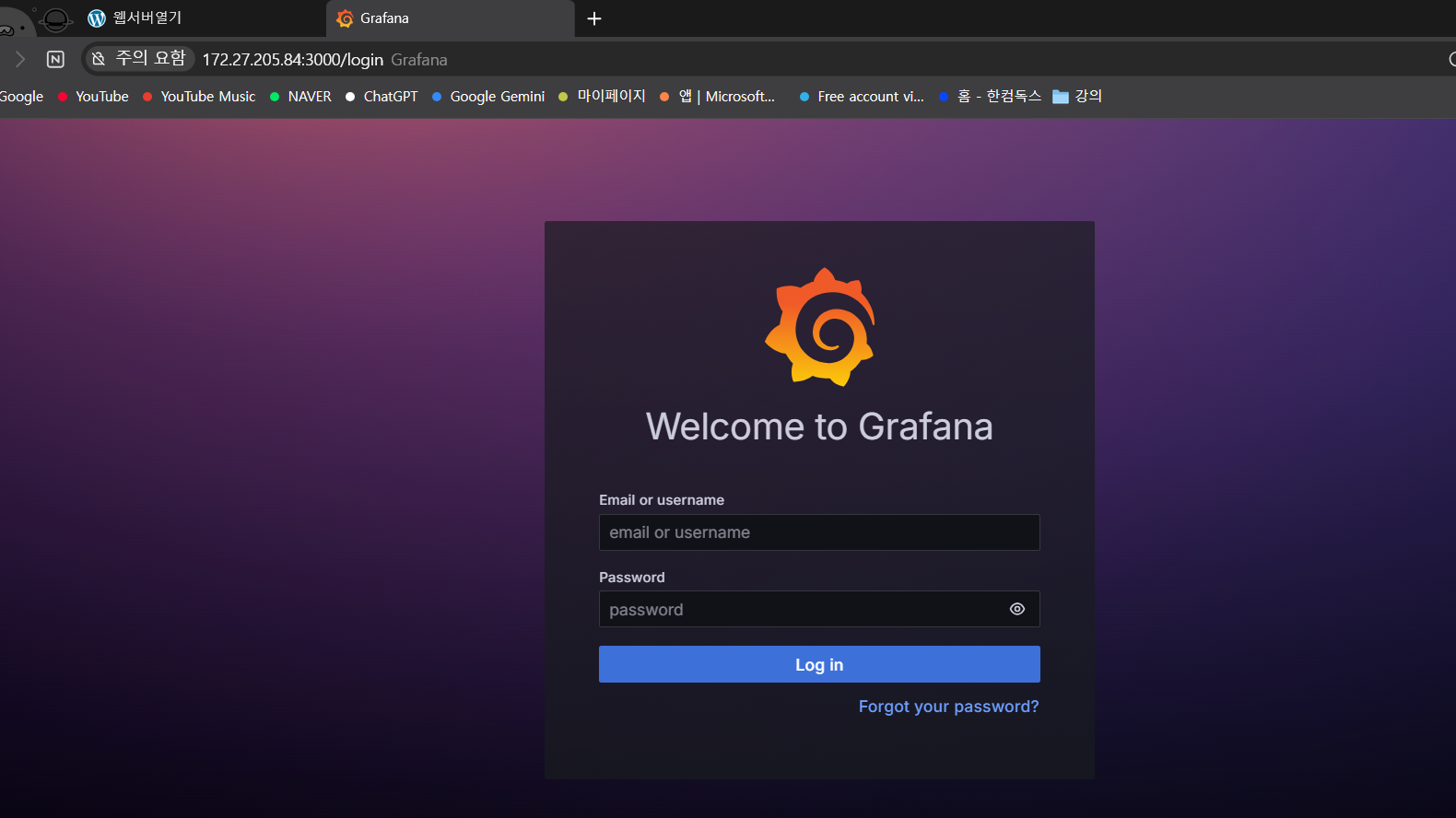

근데 아직 프로메테우스랑 그라파나랑 연결을 안 해서 빈 깡통과 같은 상태다. 프로메테우스도 활성화하고 연결시켜줘야 함
[root@monitoring ~]# ls
anaconda-ks.cfg
prometheus-3.7.3.linux-amd64
prometheus-3.7.3.linux-amd64.tar.gz
[root@monitoring ~]# cd prometheus-3.7.3.linux-amd64
[root@monitoring prometheus-3.7.3.linux-amd64]# ls
LICENSE  NOTICE  prometheus  prometheus.yml  promtool
프로메테우스도 다운받아 압축을 풀었는데 라이선스랑 노티스는 무시하고 3개의 파일이 있는 게 보인다 yml은 딱 봐도 설정파일이고 나머지 2개는 실행파일로 보인다. 이걸 각각 옮겨줘야 함
바이너리 실행 파일 2개는 인식할 수 있게 옮겨주고, 설정파일도 따로 디렉터리를 추가해서 둬준 다음 깔끔하게 남은 파일들 지
[root@monitoring prometheus-3.7.3.linux-amd64]# mv prometheus promtool /usr/local/bin/
[root@monitoring prometheus-3.7.3.linux-amd64]# mkdir -p /etc/prometheus
[root@monitoring prometheus-3.7.3.linux-amd64]# mv prometheus.yml /etc/prometheus/
[root@monitoring prometheus-3.7.3.linux-amd64]# cd ..
[root@monitoring ~]# rm -rf prom*
그리고 프로메테우스 전용 사용자를 만들어 놓음
[root@monitoring ~]# useradd -M -s /sbin/nologin prometheus
[root@monitoring ~]# chown -R prometheus:prometheus /etc/prometheus
[root@monitoring ~]# chown prometheus:prometheus /usr/local/bin/prometheus
프로메테우스가 수집하는 데이터가 있고 이게 저장되어야 하니 이 경로도 만들어줘야 함
[root@monitoring ~]# mkdir -p /var/lib/prometheus
[root@monitoring ~]# chown -R prometheus:prometheus /var/l
ib/prometheus/
프로메테우스는 그라파나처럼 시스템 대몬이 없으니 직접 만들어주면 됨
[Unit]
Description=Prometheus
Wants=network-online.target
After=network-online.target

[Service]
User=prometheus
Group=prometheus
Type=simple
ExecStart=/usr/local/bin/prometheus \
    --config.file /etc/prometheus/prometheus.yml \
    --storage.tsdb.path /var/lib/prometheus/ \
    --web.console.templates=/etc/prometheus/consoles \
    --web.console.libraries=/etc/prometheus/console_libraries

[Install]
WantedBy=multi-user.target
이러고 대몬을 재시작하고 활성화 시켜주면 된다. 기본적으로 SE리눅스가 막으니까 허용해줘야 함.
프로메테우스는 9090포트를 쓴다. 마찬가지로 허용
[root@monitoring ~]# chcon -t bin_t /usr/local/bin/prom*
[root@monitoring ~]# systemctl daemon-reload
[root@monitoring ~]# systemctl enable --now prometheus
[root@monitoring ~]# ss -tupln | grep prom
tcp   LISTEN 0      4096               *:9090             *:*    users:(("prometheus",pid=38440,fd=6))
[root@monitoring ~]# firewall-cmd --add-port 9090/tcp --permanent
success
[root@monitoring ~]# firewall-cmd --reload
success
이제 프로메테우스랑 그라파나가 활성화됐으니 둘이 연결하면 된다.
대시보드에서 Connections 들어가 검색창에 프로메테우스 검색해주고 데이터 소스에서 찾아 클릭하면 됨

들어가면 우측 상단 파란 버튼으로 추가 버튼이 있는데 누르면 아래처럼 Settings가 나옴 여기 뭐가 많은데 일단 필요없고
URL에 프로메테우스 주소를 입력해주면 된다. 그라파나 서버 기준으로 찾는 거라 로컬호스트:9090 하면 됨
만약 그라파나랑 프로메테우스가 떨어져있다면 프로메테우스 IP:9090으로 하면 됨
이후 맨 아래로 내려 Save & test 버튼 눌러서 초록색으로 API 질의 성공 표시 뜨면 끝

근데 연결은 됐는데 프로메테우스가 어디서 데이터를 추출할지 안 정해져있으므로 아직도 깡통임 그래서 웹 연결해줌
연결하려면 프로메테우스 사이트에 있는 exporter가 필요한데 종류가 엄청 많다. 근데 여기선 node랑 mysqld exporter만 있으면 충분
exporter는 말그대로 수출업자? 같은 거라 웹서버에 설치되면 여기서 수출해서 prometheus.yml보고 여기서 데이터를 받아옴
[root@Alma ~]# wget https://github.com/prometheus/mysqld_exporter/releases/download/v0.18.0/mysqld_exporter-0.18.0.linux-amd64.tar.gz
[root@Alma ~]# wget https://github.com/prometheus/node_exporter/releases/download/v1.10.2/node_exporter-1.10.2.linux-amd64.tar.gz
[root@Alma ~]# ls -l
total 20832
-rw-------. 1 root root      839 Nov  1 21:17 anaconda-ks.cfg
-rw-r--r--. 1 root root  9634286 Sep 29 17:53 mysqld_exporter-0.18.0.linux-amd64.tar.gz
-rw-r--r--. 1 root root 11686705 Oct 26 05:10 node_exporter-1.10.2.linux-amd64.tar.gz
역시 tar로 압축까지 풀어준다
[root@Alma ~]# tar xzfv node_exporter-1.10.2.linux-amd64.tar.gz
node_exporter-1.10.2.linux-amd64/
node_exporter-1.10.2.linux-amd64/node_exporter
node_exporter-1.10.2.linux-amd64/LICENSE
node_exporter-1.10.2.linux-amd64/NOTICE
[root@Alma ~]# tar xzfv mysqld_exporter-0.18.0.linux-amd64.tar.gz
mysqld_exporter-0.18.0.linux-amd64/
mysqld_exporter-0.18.0.linux-amd64/LICENSE
mysqld_exporter-0.18.0.linux-amd64/mysqld_exporter
mysqld_exporter-0.18.0.linux-amd64/NOTICE
위와 동일
[root@Alma ~]# mv mysqld_exporter-0.18.0.linux-amd64/mysqld_exporter /usr/local/bin/
[root@Alma ~]# mv node_exporter-1.10.2.linux-amd64/node_exporter /usr/local/bin/
[root@Alma ~]# rm -rf node* mysql*
[root@Alma ~]# useradd -M -s /sbin/nologin node_exporter
[root@Alma ~]# useradd -M -s /sbin/nologin mysqld_exporter
[root@Alma ~]# vi /etc/systemd/system/node-exporter.service
[Unit]
Description=Node Exporter
Wants=network-online.target
After=network-online.target

[Service]
User=node_exporter
Group=node_exporter
Type=simple
ExecStart=/usr/local/bin/node_exporter

[Install]
WantedBy=multi-user.target
mysqld 익스포터는 DB에 사용자를 만들어줘야 됨
[root@Alma ~]# mariadb
Welcome to the MariaDB monitor.  Commands end with ; or \g.
Your MariaDB connection id is 13
Server version: 10.5.29-MariaDB MariaDB Server

Copyright (c) 2000, 2018, Oracle, MariaDB Corporation Ab and others.

Type 'help;' or '\h' for help. Type '\c' to clear the current input statement.

MariaDB [(none)]> CREATE USER 'mysqld_exporter'@'localhost' IDENTIFIED BY '1234';
Query OK, 0 rows affected (0.012 sec)

MariaDB [(none)]> GRANT PROCESS, REPLICATION CLIENT ON *.* TO 'mysqld_exporter'@'localhost';
Query OK, 0 rows affected (0.006 sec)

MariaDB [(none)]> FLUSH PRIVILEGES;
Query OK, 0 rows affected (0.001 sec)

MariaDB [(none)]> exit
Bye
그리고 이거에 대한 설정 파일도 하나 만들어줘서 DB를 사용할 수 있게끔 해줌.
보안을 위해 숨김 파일로 만들고 전용 사용자 말곤 못 쓰게 해줌
[root@Alma ~]# vi /etc/.mysqld_exporter.cnf
[client]
user=mysqld_exporter
password=1234
[root@Alma ~]# chown mysqld_exporter:mysqld_exporter /etc/.mysqld_exporter.cnf
[root@Alma ~]# chmod 600 /etc/.mysqld_exporter.cnf
[root@Alma ~]# vi /etc/systemd/system/mysqld-exporter.service
[Unit]
Description=MySQLd Exporter
Wants=network-online.target
After=network-online.target
[Service]
User=mysqld_exporter
Group=mysqld_exporter
Type=simple
ExecStart=/usr/local/bin/mysqld_exporter \
--config.my-cnf /etc/.mysqld_exporter.cnf \
--collect.global_status \
--collect.info_schema.innodb_metrics \
--collect.global_variables \
--collect.info_schema.processlist \
--collect.info_schema.tables \
--collect.info_schema.userstats
[Install]
WantedBy=multi-user.target이것도 SE리눅스에 막히니까 보안 컨텍스트 바꿔 실행을 허용해주고 대몬 재시작 후 활성화
[root@Alma ~]# chcon -t bin_t /usr/local/bin/node_exporter
[root@Alma ~]# chcon -t bin_t /usr/local/bin/mysqld_exporter
[root@Alma ~]# systemctl daemon-reload
[root@Alma ~]# systemctl enable --now node-exporter
Created symlink /etc/systemd/system/multi-user.target.wants/node-exporter.service → /etc/systemd/system/node-exporter.service.
[root@Alma ~]# systemctl enable --now mysqld-exporter
Created symlink /etc/systemd/system/multi-user.target.wants/mysqld-exporter.service → /etc/systemd/system/mysqld-exporter.service.
얘들은 포트가 9100 9104로 나옴 이것도 똑같이 허용
[root@Alma ~]# ss -tunlp | grep exporter
tcp   LISTEN 0      4096               *:9104             *:*    users:(("mysqld_exporter",pid=7320,fd=3))
tcp   LISTEN 0      4096               *:9100             *:*    users:(("node_exporter",pid=7289,fd=3))
[root@Alma ~]# firewall-cmd --add-port 9100/tcp --permanent
success
[root@Alma ~]# firewall-cmd --add-port 9104/tcp --permanent
success
[root@Alma ~]# firewall-cmd --reload
success
이제 드디어 하나만 남았다. 모니터링 VM에서 얘를 볼 수 있어야 하기에 아까 넣어둔 설정 파일을 맞춰주면 됨
일단 /etc/hosts에 웹서버 도메인을 추가해줌
[root@monitoring ~]# sed -i '$a\172.27.193.11 wordpress' /etc/hosts그리고 여기에 설정하고, 프로메테우스 재시작해서 설정 읽게 하면 됨
[root@monitoring ~]# vi /etc/prometheus/prometheus.yml
# my global config
global:
  scrape_interval: 15s # Set the scrape interval to every 15 seconds. Default is every 1 minute.
  evaluation_interval: 15s # Evaluate rules every 15 seconds. The default is every 1 minute.
  # scrape_timeout is set to the global default (10s).

# Alertmanager configuration
alerting:
  alertmanagers:
    - static_configs:
        - targets:
          # - alertmanager:9093

# Load rules once and periodically evaluate them according to the global 'evaluation_interval'.
rule_files:
  # - "first_rules.yml"
  # - "second_rules.yml"

# A scrape configuration containing exactly one endpoint to scrape:
# Here it's Prometheus itself.
scrape_configs:
  # The job name is added as a label `job=<job_name>` to any timeseries scraped from this config.
  - job_name: "prometheus"

    # metrics_path defaults to '/metrics'
    # scheme defaults to 'http'.

    static_configs:
      - targets: ["localhost:9090"]

### ===== 여기 추가 ===== ###
  - job_name: "wordpress-lemp"
    static_configs:
      - targets: ["wordpress:9100", "wordpress:9104"]
### ===== 여기 추가 ===== ###

       # The label name is added as a label `label_name=<label_value>` to any timeseries scraped from this config.
        labels:
          app: "prometheus"
[root@monitoring ~]# systemctl restart prometheus
그럼 그라파나 말고 프로메테우스 쪽에서 연결 상태를 직접 확인하게 :9090으로 들어가 상단 메뉴바에 status 눌러서 확인하면 됨

초록색으로 정상적으로 엔드포인트가 연동되었다고 확인되면 그라파나 대시보드에 이제 시각화 할 수 있게 됨
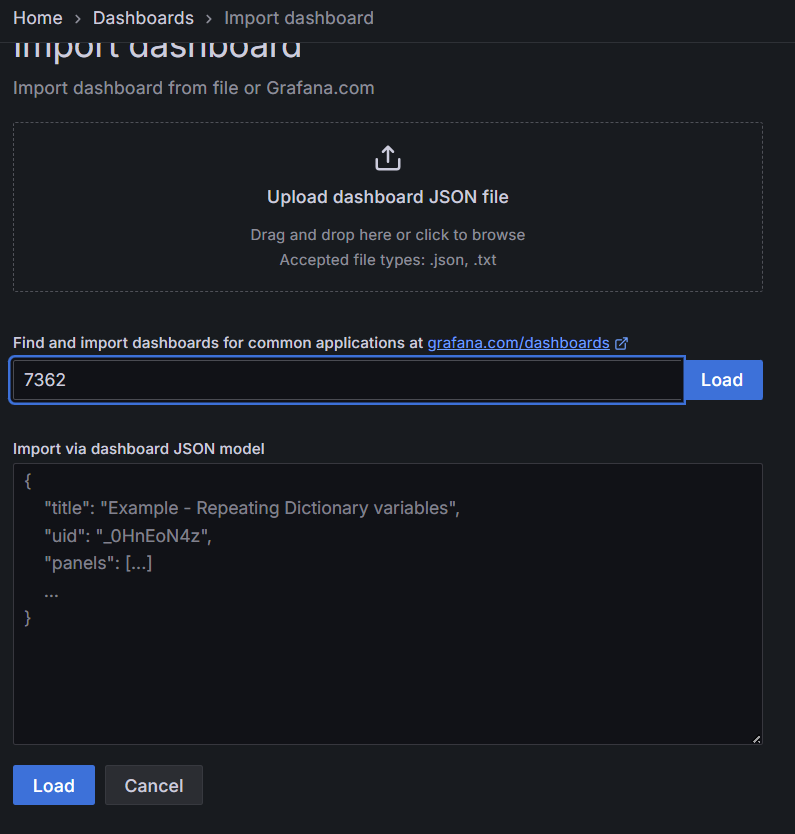
Dashboards로 가 우측 상단 드랍다운에 import를 클릭

이미 많은 고수들이 만들어놓은 시각화 대시보드 템플릿들이 있어서 그거 가져다 썼다.
자세한 내용은 공식 대시보드 페이지에 많이 있음
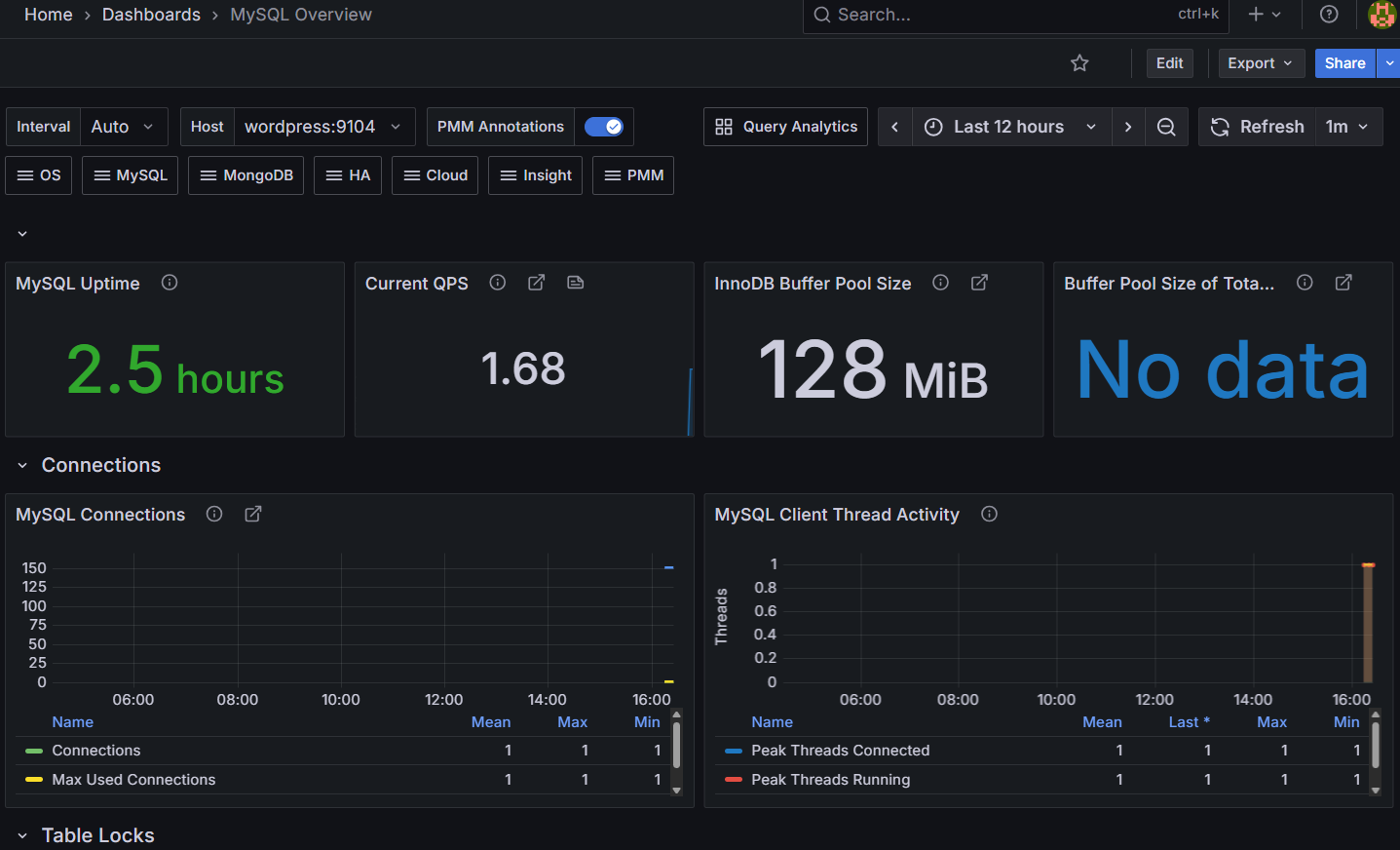
이제 DB에 대한 정보를 시각화하여 볼 수 있다
'리눅스 > 실습' 카테고리의 다른 글
| 모니터링 서버 구축해보기-3 (0) | 2025.11.16 |
|---|---|
| 모니터링 서버 구축해보기-2 (1) | 2025.11.14 |
| ansible로 쿠버네티스 클러스터 구성하기 (0) | 2025.11.11 |
| 내부 저장소 구축과 연동 - 2 (0) | 2025.11.10 |
| 내부 저장소 구축과 연동 - 1 (0) | 2025.11.10 |