하이퍼-V에서 LEMP 서버를 구축해서 워드프레스를 연결해보겠음. 이전에는 APM이라고 해서 Apache 웹서버, PHP, Mysql 스택으로 많이 사용됐다고 하고, 그렇게 해봤었는데 이번에는 EMP로 구축해보기로 함 리눅스까지 포함해서 LAMP, LEMP라고 한다고도 함
그래서 EMP는 Nginx, MariaDB, PHP로 구성되어 있는데, 웹서버가 Apache에서 Nginx로 바뀌고 Mysql의 인수와 라이선스 정책 변화에 따라 MariaDB로 대체되어 이렇게 구성된다.
패키지를 깔아야 되는데 레드햇 환경이므로 dnf를 이용해서 필요한 패키지들을 설치한다. 그리고 시스템 활성화랑 시작
외부(VM 밖에서)에서 접속해야 하니까 방화벽에 웹 포트를 뚫어줌.
[root@Alma ~]# dnf install -y nginx php-fpm php-mysqlnd mariadb mariadb-server
[root@Alma ~]# systemctl enable --now php-fpm
Created symlink /etc/systemd/system/multi-user.target.wants/php-fpm.service → /usr/lib/systemd/system/php-fpm.service.
[root@Alma ~]# systemctl enable --now mariadb
Created symlink /etc/systemd/system/mysql.service → /usr/lib/systemd/system/mariadb.service.
Created symlink /etc/systemd/system/mysqld.service → /usr/lib/systemd/system/mariadb.service.
Created symlink /etc/systemd/system/multi-user.target.wants/mariadb.service → /usr/lib/systemd/system/mariadb.service.
[root@Alma ~]# systemctl enable --now nginx
Created symlink /etc/systemd/system/multi-user.target.wants/nginx.service → /usr/lib/systemd/system/nginx.service.
[root@Alma ~]# firewall-cmd --add-port 80/tcp
success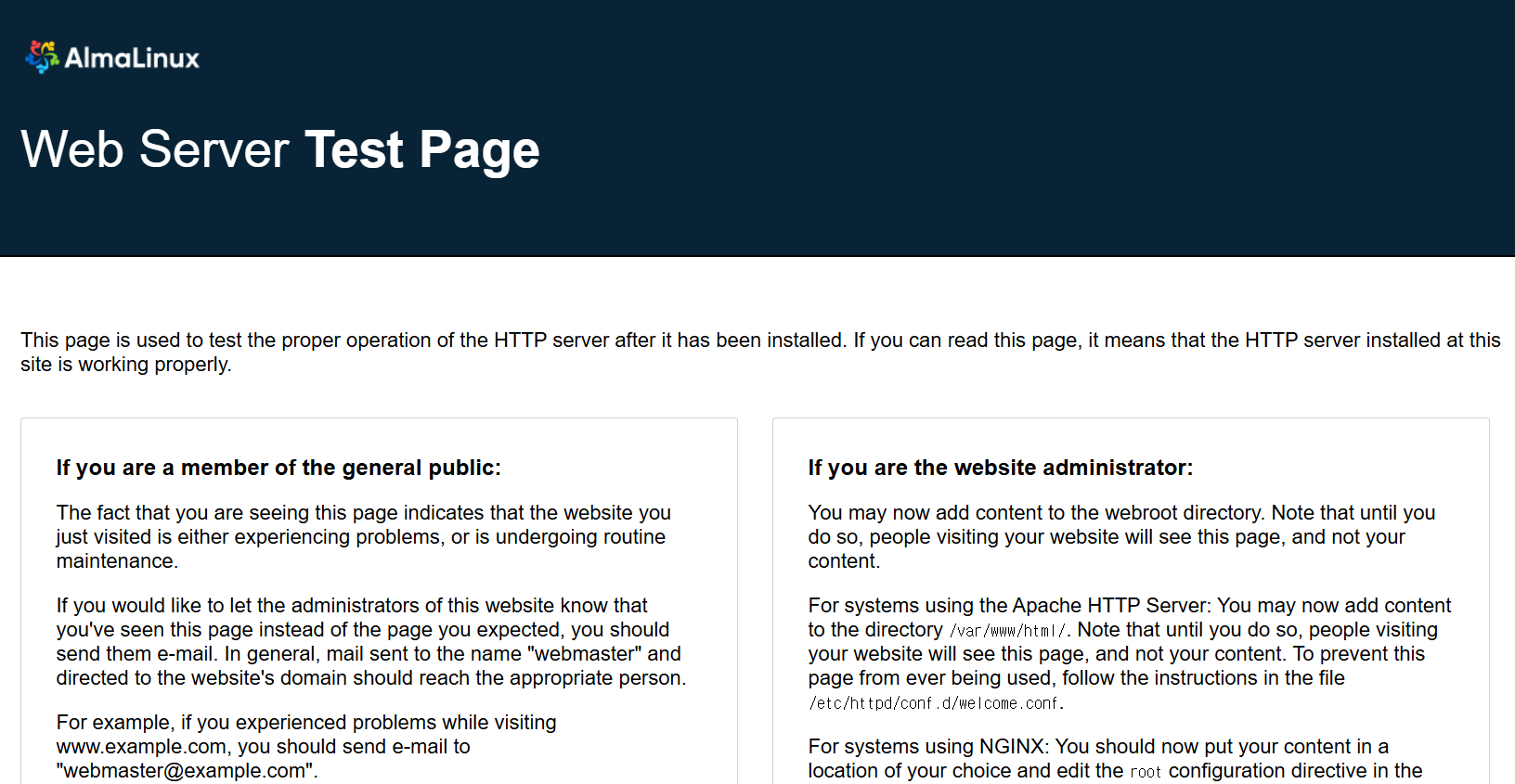
그러면 이렇게 브라우저에서 vm의 주소로 웹서버가 뚫린 게 확인이 됨. 페이지는 버전마다 다를 수 있음.
php-fpm은 FastCGI 프로세스 매니저의 약자인데 CGI가 Common Gateway Inferface니까 쉽게 생각하면
백엔드 코드랑 웹서버랑 잘 붙여준다고 생각하면 된다. mysqlnd도 여기서 DB 붙일 때 쓰이는 거
mysql대신 mariadb를 했으나 어차피 여기서는 별 차이 없다. 그래서 워드프레스가 붙을 수 있게 DB 설정도 해주면 됨
아무것도 안 되어 있는 초기면 보안을 위해 이렇게 설정해주면 좋음. 뭐 많이 물어보는데 읽어보고 맞게끔 설정하면 됨
[root@Alma ~]# mariadb-secure-installation

NOTE: RUNNING ALL PARTS OF THIS SCRIPT IS RECOMMENDED FOR ALL MariaDB
      SERVERS IN PRODUCTION USE!  PLEASE READ EACH STEP CAREFULLY!

In order to log into MariaDB to secure it, we'll need the current
password for the root user. If you've just installed MariaDB, and
haven't set the root password yet, you should just press enter here.

Enter current password for root (enter for none):
OK, successfully used password, moving on...

Setting the root password or using the unix_socket ensures that nobody
can log into the MariaDB root user without the proper authorisation.

You already have your root account protected, so you can safely answer 'n'.

Switch to unix_socket authentication [Y/n] n
 ... skipping.

You already have your root account protected, so you can safely answer 'n'.

Change the root password? [Y/n] n
 ... skipping.

By default, a MariaDB installation has an anonymous user, allowing anyone
to log into MariaDB without having to have a user account created for
them.  This is intended only for testing, and to make the installation
go a bit smoother.  You should remove them before moving into a
production environment.

Remove anonymous users? [Y/n] y
 ... Success!

Normally, root should only be allowed to connect from 'localhost'.  This
ensures that someone cannot guess at the root password from the network.

Disallow root login remotely? [Y/n] y
 ... Success!

By default, MariaDB comes with a database named 'test' that anyone can
access.  This is also intended only for testing, and should be removed
before moving into a production environment.

Remove test database and access to it? [Y/n] y
 - Dropping test database...
 ... Success!
 - Removing privileges on test database...
 ... Success!

Reloading the privilege tables will ensure that all changes made so far
will take effect immediately.

Reload privilege tables now? [Y/n] y
 ... Success!

Cleaning up...

All done!  If you've completed all of the above steps, your MariaDB
installation should now be secure.

Thanks for using MariaDB!
이제 데이터가 생기기 전에 따로 파티션을 나눠서 DB 전용이랑 웹(워드프레스) 전용으로 나눠서 각각 마운트 해주면 됨.
굳이 안 해도 동작은 하지만 관리하게 편하게 해주면 좋다. 이미 가상디스크가 여럿 붙어있는 상태이므로 sdb 디스크를 2개 파티션으로 나눠서 이걸 웹이랑 db에 붙여보겠다.
이미 파티션까지 이전에 진행해뒀었으니 다시 데이터 밀고 깨끗한 상태에서 다시 하기 위해 wipefs로 밀어주고 시작
[root@Alma ~]# lsblk
NAME               MAJ:MIN RM  SIZE RO TYPE MOUNTPOINTS
sda                  8:0    0   40G  0 disk
├─sda1               8:1    0  600M  0 part /boot/efi
├─sda2               8:2    0    1G  0 part /boot
└─sda3               8:3    0 38.4G  0 part
  ├─almalinux-root 253:0    0 34.5G  0 lvm  /
  └─almalinux-swap 253:1    0  3.9G  0 lvm  [SWAP]
sdb                  8:16   0   10G  0 disk
├─sdb1               8:17   0    5G  0 part
└─sdb2               8:18   0    5G  0 part
sdc                  8:32   0   10G  0 disk
├─sdc1               8:33   0    5G  0 part
└─sdc2               8:34   0    5G  0 part
sdd                  8:48   0   10G  0 disk
├─sdd1               8:49   0    5G  0 part
└─sdd2               8:50   0    5G  0 part
sde                  8:64   0   10G  0 disk
├─sde1               8:65   0    5G  0 part
└─sde2               8:66   0    5G  0 part
sr0                 11:0    1 1024M  0 rom
[root@Alma ~]# wipefs -a /dev/sdb
/dev/sdb: 8 bytes were erased at offset 0x00000200 (gpt): 45 46 49 20 50 41 52 54
/dev/sdb: 8 bytes were erased at offset 0x27ffffe00 (gpt): 45 46 49 20 50 41 52 54
/dev/sdb: 2 bytes were erased at offset 0x000001fe (PMBR): 55 aa
/dev/sdb: calling ioctl to re-read partition table: Success
[root@Alma ~]# cfdisk /dev/sdb

Syncing disks.
[root@Alma ~]# mkfs.xfs -f /dev/sdb1
meta-data=/dev/sdb1              isize=512    agcount=4, agsize=327680 blks
         =                       sectsz=4096  attr=2, projid32bit=1
         =                       crc=1        finobt=1, sparse=1, rmapbt=0
         =                       reflink=1    bigtime=1 inobtcount=1 nrext64=0
data     =                       bsize=4096   blocks=1310720, imaxpct=25
         =                       sunit=0      swidth=0 blks
naming   =version 2              bsize=4096   ascii-ci=0, ftype=1
log      =internal log           bsize=4096   blocks=16384, version=2
         =                       sectsz=4096  sunit=1 blks, lazy-count=1
realtime =none                   extsz=4096   blocks=0, rtextents=0
Discarding blocks...Done.
[root@Alma ~]# mkfs.xfs -f /dev/sdb2
meta-data=/dev/sdb2              isize=512    agcount=4, agsize=327615 blks
         =                       sectsz=4096  attr=2, projid32bit=1
         =                       crc=1        finobt=1, sparse=1, rmapbt=0
         =                       reflink=1    bigtime=1 inobtcount=1 nrext64=0
data     =                       bsize=4096   blocks=1310459, imaxpct=25
         =                       sunit=0      swidth=0 blks
naming   =version 2              bsize=4096   ascii-ci=0, ftype=1
log      =internal log           bsize=4096   blocks=16384, version=2
         =                       sectsz=4096  sunit=1 blks, lazy-count=1
realtime =none                   extsz=4096   blocks=0, rtextents=0
Discarding blocks...Done.
[root@Alma ~]# blkid /dev/sdb2
/dev/sdb2: UUID="cffe7f17-3abd-44d4-9c52-c31d95937230" TYPE="xfs" PARTUUID="cebb9c07-725c-6a44-8eca-2451251532b3"
여기서 blkid로 파티션 확인해서 xfs로 파일시스템 생성이 되면 작업 준비 끝!
이제 /mnt 디렉터리 아래 web이랑 db를 만들어서 각각 마운트 시키고 사용 준비하면 됨
다 성공적으로 되면 /etc/fstab에도 추가해준다. (나중에 다시 켰을 때도 되게)
[root@Alma ~]# mkdir -p /mnt/web
[root@Alma ~]# mkdir -p /mnt/db
[root@Alma ~]# mount /dev/sdb1 /mnt/web
[root@Alma ~]# mount /dev/sdb2 /mnt/db
[root@Alma ~]# df
Filesystem                 1K-blocks     Used Available Use% Mounted on
devtmpfs                        4096        0      4096   0% /dev
tmpfs                        1870872        0   1870872   0% /dev/shm
tmpfs                         748352     8736    739616   2% /run
efivarfs                      131072       32    131036   1% /sys/firmware/efi/efivars
/dev/mapper/almalinux-root  36073472  3956432  32117040  11% /
/dev/sda2                     983040   334500    648540  35% /boot
/dev/sda1                     613160     7240    605920   2% /boot/efi
172.23.195.8:/nfs           60133376 17399808  42733568  29% /nfs
tmpfs                         374172        4    374168   1% /run/user/0
/dev/sdb1                    5177344    69204   5108140   2% /mnt/web
/dev/sdb2                    5176300    69204   5107096   2% /mnt/db
그리고 DB 설정 파일을 바꿔줘야 함. 기본적으로 /var/lib/mysql을 바라보고 있기 때문에 이걸 /mnt/db로 변경!
[root@Alma ~]# vi /etc/my.cnf.d/mariadb-server.cnf

datadir=/mnt/db
...
데이터 무결성을 위해 잠깐 서비스를 중지하고 기존 파일들을 복사해 옮겨놓는다. 혹시 모르니까 mv 대신 cp로
그 다음 옮기면서 소유권이 변경됐으니 chown -R mysql:mysql /mnt/db로 다시 바꿔줌
[root@Alma ~]# systemctl stop mariadb
[root@Alma ~]# cp -r /var/lib/mysql/* /mnt/db/
[root@Alma ~]# chown -R mysql:mysql /mnt/db
잘 설정 됐으면 다시 시작하면 마운트된 장치에 기록됨. 시작하면 소켓이랑 임시 파일 여기 생기면 정상
[root@Alma ~]# ls /mnt/db/
aria_log.00000001  ib_buffer_pool  ibdata1            mysql               performance_schema
aria_log_control   ib_logfile0     multi-master.info  mysql_upgrade_info
[root@Alma ~]# systemctl start mariadb

[root@Alma ~]# ls /mnt/db/
aria_log.00000001  ib_buffer_pool  ibdata1  multi-master.info  mysql.sock          performance_schema
aria_log_control   ib_logfile0     ibtmp1   mysql              mysql_upgrade_info
웹도 마찬가지로 바꿔주면 됨. 바꾸면 거부가 되는데 파티션 2번에 아직 아무것도 없으니 정상이다.
[root@Alma ~]# vi /etc/nginx/nginx.conf
  include /etc/nginx/conf.d/*.conf;
  ## 서버 80포트 부분에 이렇게 추가 php-fpm도 연동되게끔
  server {
         listen  80;
         listen  [::]:80;
         server_name _;

        root /mnt/web;

        index index.php index.html index.htm;

        location / {
            try_files $uri $uri/ /index.php?$args;
        }

        location ~ \.php$ {
            fastcgi_pass unix:/run/php-fpm/www.sock;
            fastcgi_index index.php;
            fastcgi_param SCRIPT_FILENAME $document_root$fastcgi_script_name;
            include fastcgi_params;
        }
 }

[root@Alma ~]# systemctl restart nginx
[root@Alma ~]# curl localhost
<html>
<head><title>403 Forbidden</title></head>
<body>
<center><h1>403 Forbidden</h1></center>
<hr><center>nginx/1.20.1</center>
</body>
</html>
이제 워드프레스를 받고 웹에 연결해주면 됨 워드프레스는 사이트 들어가서 릴리즈 하나 골라갖고 오면 됨. 위치는 당연히 /mnt/web
워드프레스 공식 - https://ko.wordpress.org/download/
여기 들어가서 다운로드 링크 복사해서 wget https://ko.wordpress.org/latest-ko_KR.zip 이런 식으로 다운받고 압축풀면 끝
[root@Alma web]# wget https://ko.wordpress.org/latest-ko_KR.zip
[root@Alma web]# unzip -q latest-ko_KR.zip
[root@Alma web]# rm latest-ko_KR.zip
[root@Alma web]# cd wordpress/
[root@Alma wordpress]# mv * ..
[root@Alma wordpress]# cd ..
[root@Alma web]# rmdir wordpress
다 옮겨주고 남은 파일들은 깨끗하게 제거하면 됨.
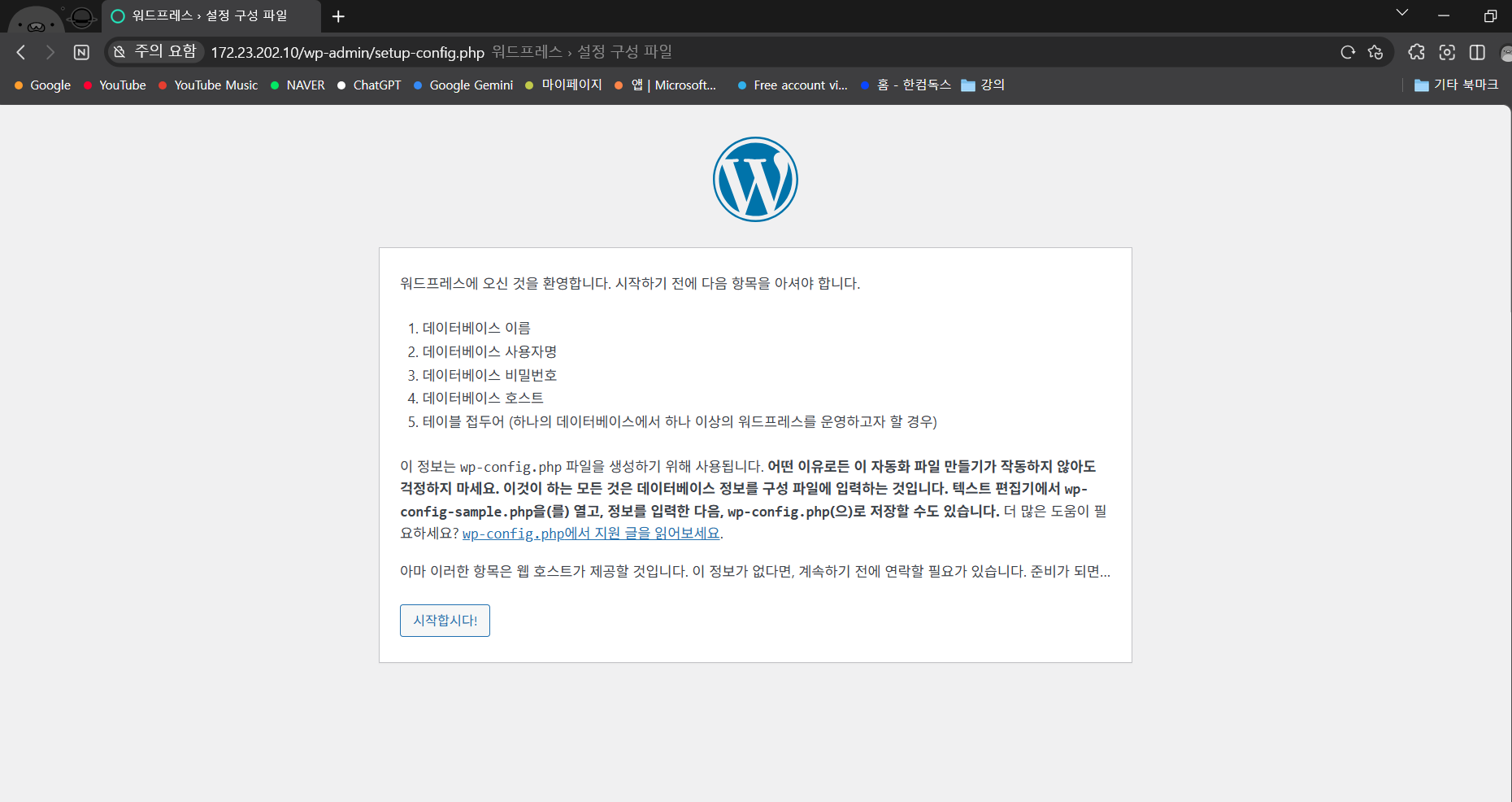
이제 DB 설정만 해주면 된다.
'리눅스 > 실습' 카테고리의 다른 글
| 웹서버에 TLS 적용하기 (0) | 2025.11.08 |
|---|---|
| 워드프레스 LEMP 서버 구축하기-2 (0) | 2025.11.08 |
| 리눅스 실습(4) - 프로세스와 자원 실습 (0) | 2025.11.02 |
| 리눅스 실습(3) - 파일시스템 실습(백업 마무리) (0) | 2025.11.02 |
| 리눅스 실습(3) - 파일시스템 실습(백업 스케쥴링과 이중화) (0) | 2025.11.01 |